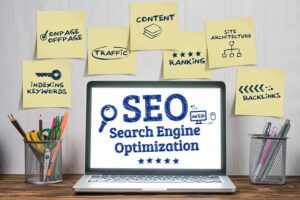
Optimized for SEO - How to check if your website is optimized
Optimized for SEO?
You aren’t the only one wondering if your website is optimized for search engines or how to determine if it is truly SEO-optimized. Although SEO might seem daunting at first, it isn’t actually that difficult.
How to check if your website is optimized for SEO?
This tutorial will guide you through simple, actionable steps to audit your website’s SEO performance, whether you are a marketer, a business owner, or someone just learning about SEO. You don’t need to be a technical expert to determine if your SEO is effective. Best of all, many of these tests are free.
An SEO-optimized site will attract customers organically.” or “It is important that every newly published article is fully optimized for SEO.
How to check H1–H6 heading tags
Heading tags (H1, H2, H3, etc.) help both users and search engines understand the content structure.
H1 is the main page title.
H2–H6 are used for subheadings and sections.
Option 1: Check via page source
Step 1: Right-click on the page and select “View page source”.
Step 2: Use the search function (Ctrl + F or Cmd + F) to look for <h1>, <h2>, <h3>, etc.
Things to check:
There should be only one H1 per page.
H2 and H3 tags should be used logically to structure sections and subsections.
Headings should include relevant keywords, where applicable.
Option 2: SEO META in 1 Click
The extension displays all headings (H1–H6) on the page in a clean list. This is perfect for quickly checking:
If your H1 is set correctly
If your headings are descriptive and organized
How to check robots meta tags
Robots meta tags control how search engines index a website and follow its links.
Typical values:
Index, follow: Allows indexing and link following.
Do not index the page and do not follow any links.
Check using the page source
1: Right-click and select “View page source”
2: Search for: <meta name=“robots” content=“index, follow”>
For important pages you want to appear in search results, the robots meta tag should typically be set to “index, follow” or omitted entirely (“index, follow” is the default behavior).
Alternatively: One-click SEO meta check
The extension will display the robots meta tag value.
How to check Schema markup
Schema markup helps search engines better understand your page’s content and context. It can also help your pages appear with rich results in SERPs.
Check via page source
View the page source.
Search for application/ld+json (JSON-LD) or other Schema formats.
You will usually see something like this:
<script type=”application/ld+json”>
{
„@context”: „https://schema.org”,
„@type”: „Article”,
…
}
</script>
How to Assess a Page's SEO Optimization
Start by analyzing your most important pages—especially those where you have previously performed SEO work—to determine whether your website is optimized for search engines or if SEO practices have been correctly applied.
The next step is to verify that everything has been executed correctly, ensuring you have followed SEO recommendations for specific pages (such as adding keywords, titles, and descriptions).
Here is a quick checklist of important components to review on each page:
Meta Description & Title Tag
Headings (H1, H2, H3, etc.)
Content Schema Markup & URL Structure
Robots Meta Tags, Internal Links, Canonical URL, & Image Alt Text
In the following sections, I will demonstrate how to examine each of these components using simple, free tools that are ideal for beginners.
Suggested Resource: SEO META in 1 CLICK (Chrome Extension)
The SEO META in 1 CLICK Chrome plugin is one of the easiest ways to audit various SEO aspects of a page.
I frequently use this add-on to quickly determine whether a website is optimized for search engines.
Install the SEO META in 1 CLICK plugin in your Chrome browser.
Once installed, you can quickly view all the important SEO components of your website in one place simply by opening any page.
Option 1: Check the robots.txt file
Search engines can determine which pages to avoid and which to crawl based on your robots.txt file.
Enter https://yourdomain.com/robots.txt in your browser to check if any crucial pages—such as the homepage or vital landing pages—are blocked.
Option 2:
Use a free crawling tool. Additionally, you can scan the website using a free online crawler. Much like a search engine, these tools explore the site and highlight any crawling issues. Beginners who prefer not to delve into complex technical details will find this extremely useful.
How to determine if Google is indexing a website
Once you have established that your website is crawlable, the next step is to see if Google is actually indexing your content.
Use the site search operator
Open Google. Type `site:yourdomain.com` and press Enter.
If you see very few results, it could mean that many pages are not being indexed.
Alternative: Use Google Search Console
In Google Search Console:
Go to the “Pages” or “Index coverage” section.
How to check domain authority
Domain Authority (DA) is a third-party metric that predicts how likely your website is to rank compared to others.
It serves as a useful comparative metric.
To check it:
Online domain authority checker tool
Simply enter your domain, and the tool will display your DA score along with other useful metrics.
Pages on your own website are connected via internal links. These help to:
Direct visitors to relevant content
Help search engines understand your website’s structure
Distribute link equity among key pages.
How to review internal links on a optimized for SEO website
Manually review key pages to determine if they link to other relevant pages.
If you use SEO tools (such as Rank Math, Yoast, etc.), ensure you have implemented their recommendations regarding internal links.
There should be multiple internal links pointing to key pages, such as money pages, pillar posts, and main category pages.
How to check your website's backlinks
One of the most important ranking factors is backlinks—links pointing to your website from other sites. They signal to Google that other websites value your content.
1: Use SEO tools – Ahrefs, SEMrush, and similar tools can show you:
The number of backlinks pointing to your website
Which websites are linking to you?
The type and quality of the links
Although these are paid products, they often offer limited free reports or free trial periods.
Or: Use Google Search Console
In Google Search Console:
Go to the “Links” section.
Top linked pages and top linking sites are displayed under “External links.”
Everything you need to know about optimized for SEO.
These simple tools and techniques will help you evaluate how effectively your website is optimized for search engines. Visit our website for packages and pricing regarding website creation and management.